Ways to sort photos by location on Windows, compared
There are plenty of programs that can show your photos on a map. There are far fewer that will take a folder of photos and turn it into one folder per place on your own drive. This page compares the usual options on Windows, from free to paid, so you can pick the one that fits the job.
Every option below reads the same thing: the GPS position your phone or camera wrote into each photo when it was taken. If a photo has no position (location was off for the camera, or a messaging app stripped it), none of them can place it automatically.
At a glance
| Price | Stays on your PC | Groups by place | Folder per place | |
|---|---|---|---|---|
| File Explorer | Free, built in | Yes | No | No, by hand |
| Google Photos | Free up to your Google storage | No, uploaded | Yes, on a map and by city | No |
| Lightroom Classic | Subscription | Yes | Map and city filters | No, by hand |
| digiKam | Free, open source | Yes | Map search | No, by hand |
| ExifTool | Free, command line | Yes | Nearest town or city | With scripting |
| Location Sorter | €24.99 once, 7-day free trial | Yes | Yes, places named from the map | Yes, with undo |
File Explorer
What's already on your PC. Properties → Details → GPS shows one photo's latitude and longitude, and a folder can be grouped by Date taken. There is no column for where a photo was taken, so it can't group or sort by place. Fine for twenty photos, slow for two hundred. Our guide to sorting photos by location on Windows shows the by-hand method.
Google Photos
Upload your photos and Google Photos will show them on a map and let you search by city or landmark. It's very good at finding a photo. It doesn't organise the files on your PC, though: your library lives in Google's cloud, and a download (or Google Takeout) gives you files grouped by album or date, not by place. It also means every photo, with its position, is uploaded. More on that in Google Photos places vs folders on your PC.
Lightroom Classic
Adobe's catalogue app has a Map module that shows photos as pins, and it can look up a city and country for each photo from its GPS. You can then filter the library by city and drag the results into a folder in the Folders panel, one place at a time. It's a powerful editor and many photographers already pay for it, but it takes a subscription, and sorting into folders is still manual.
digiKam
A free, open-source photo manager for Windows, macOS and Linux. Its map view can find every photo inside an area you draw, and its geolocation editor can add or correct positions. Moving the results into folders is done by hand, album by album. A good choice if you want a full free photo manager and don't mind a learning curve.
ExifTool
The free command-line tool most photo software is built on. Recent versions (12.78 and later) can look up the nearest town or city for a photo from a built-in database of places with about 2,000 people or more, and ExifTool can rename and move files based on their metadata. Combined, that can file photos into folders by town, with no window and no clicking. It needs comfort with the command line, works at town level rather than street level, and there is no preview before the files move.
Location Sorter
Location Sorter is built for exactly this one job. Point it at a folder; it groups shots taken close together into places, names each one from the map (a street, a square, a landmark), and shows them on a map and as strips of shots.
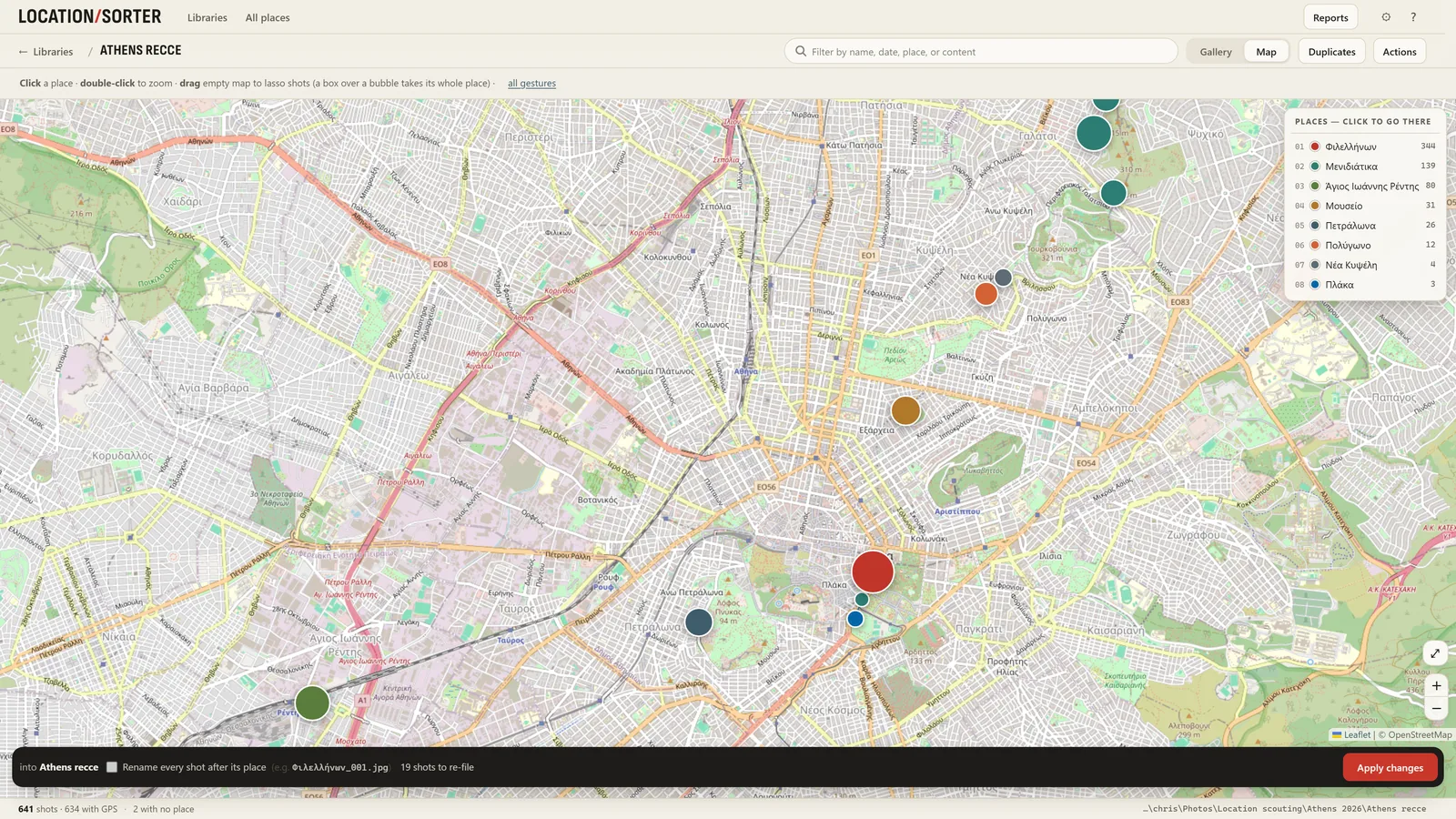
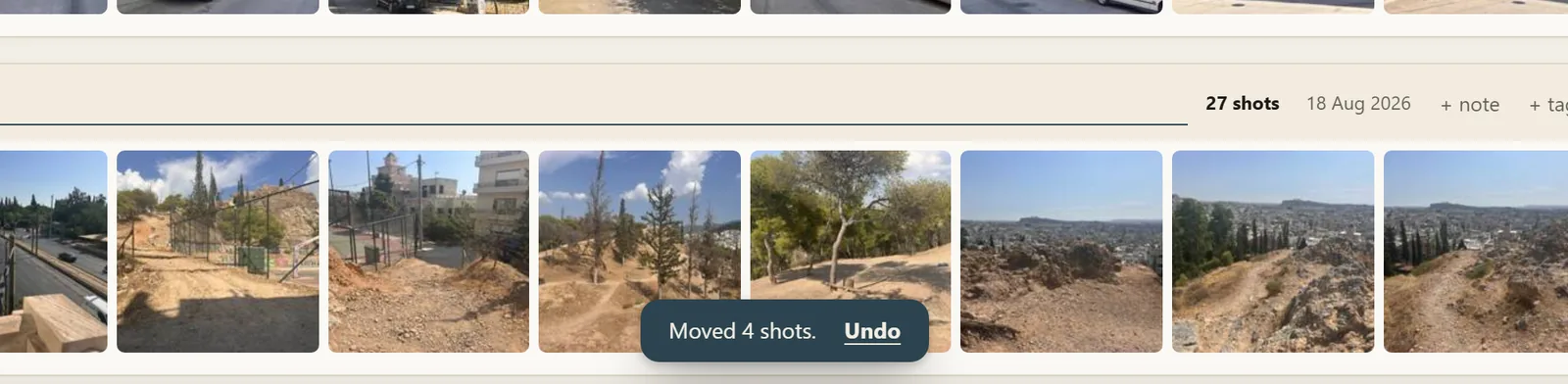
You fix anything that's wrong first: rename a place, drag shots between places, lasso a group on the map. Nothing moves on disk until you press Apply, and Put shots back undoes a sort. It reads JPG, HEIC and PNG photos and MP4, MOV, M4V and 3GP clips, and works on OneDrive, Dropbox, Google Drive and iCloud folders on your PC. There's no account and nothing is uploaded; only coordinates are sent to OpenStreetMap to name places.
It's paid (€24.99 once, after a 7-day trial with every feature) and Windows only, and it organises rather than edits: you'll still want an editor for the photos themselves.
Which one to use
- A few dozen photos, once: File Explorer is enough.
- You want to find photos, not file them, and already use Google: Google Photos.
- You edit in Lightroom and only need city-level filters: Lightroom Classic.
- You want free and don't mind learning a big program: digiKam, or ExifTool if you're at home on the command line.
- Hundreds or thousands of photos into a folder per place, checked on a map first: Location Sorter.