How to see where a photo was taken on Windows
A photo from a phone almost always knows where it was taken. The position is stored inside the file, so you can read it on your PC without any website or account. Here is how, first for a single photo with what Windows already has, then for a whole folder at once.
Check whether the photo has a position
Phones write the GPS position into each photo's EXIF data when location is allowed for the camera. It survives copying the file over a cable or syncing it through OneDrive, iCloud, Google Drive or Dropbox. It is usually gone if the photo came to you through a messaging or social app, since many of those remove it before sending. Screenshots and photos edited and exported by some apps don't have one either.
One photo: File Explorer
This works on Windows 10 and Windows 11 for JPG files, and for HEIC files from an iPhone once Windows can open them (see the note below).
- In File Explorer, right-click the photo and choose Properties.
- Open the Details tab.
- Scroll down to the GPS section.
You'll see Latitude and Longitude, written in degrees, minutes and seconds, for example 37; 58; 31.15 and 23; 43; 52.6. If there is no GPS section, or it is empty, the photo has no position.
Turn the numbers into a place
The numbers mean 37° 58′ 31.15″ north and 23° 43′ 52.6″ east. To see that on a map, type them into the search box of Google Maps or OpenStreetMap in this form:
37°58'31.15"N 23°43'52.6"E
Latitudes south of the equator are S rather than N, and longitudes west of Greenwich are W rather than E. Windows' Details tab shows Latitude and Longitude without the letters, so if a photo was taken in the Americas or the southern hemisphere, add the right letters yourself. Most of the time you'll know roughly where you were, which makes it easy to tell.
A note on HEIC photos
iPhones save photos as HEIC by default. If Windows shows them as blank icons, install Microsoft's free HEIF Image Extensions from the Microsoft Store, and File Explorer and the Photos app will open them and show their details. You can also make the iPhone save JPG instead: Settings → Camera → Formats → Most Compatible.
In the Photos app
The Photos app that comes with Windows shows a photo's details too: open a photo and look for the information button (an i) at the top. Depending on the version of the app, it shows the date, the camera and, for photos with a position, where the photo was taken. It is handy for a quick look at one photo, but like File Explorer it only shows one at a time.
A whole folder at once: Location Sorter
Looking up photos one by one is fine for two or three. For a trip or a job, you want to see all of them on a map, grouped by place. Location Sorter does that from the positions already in the files, on your PC, with no account and no upload.
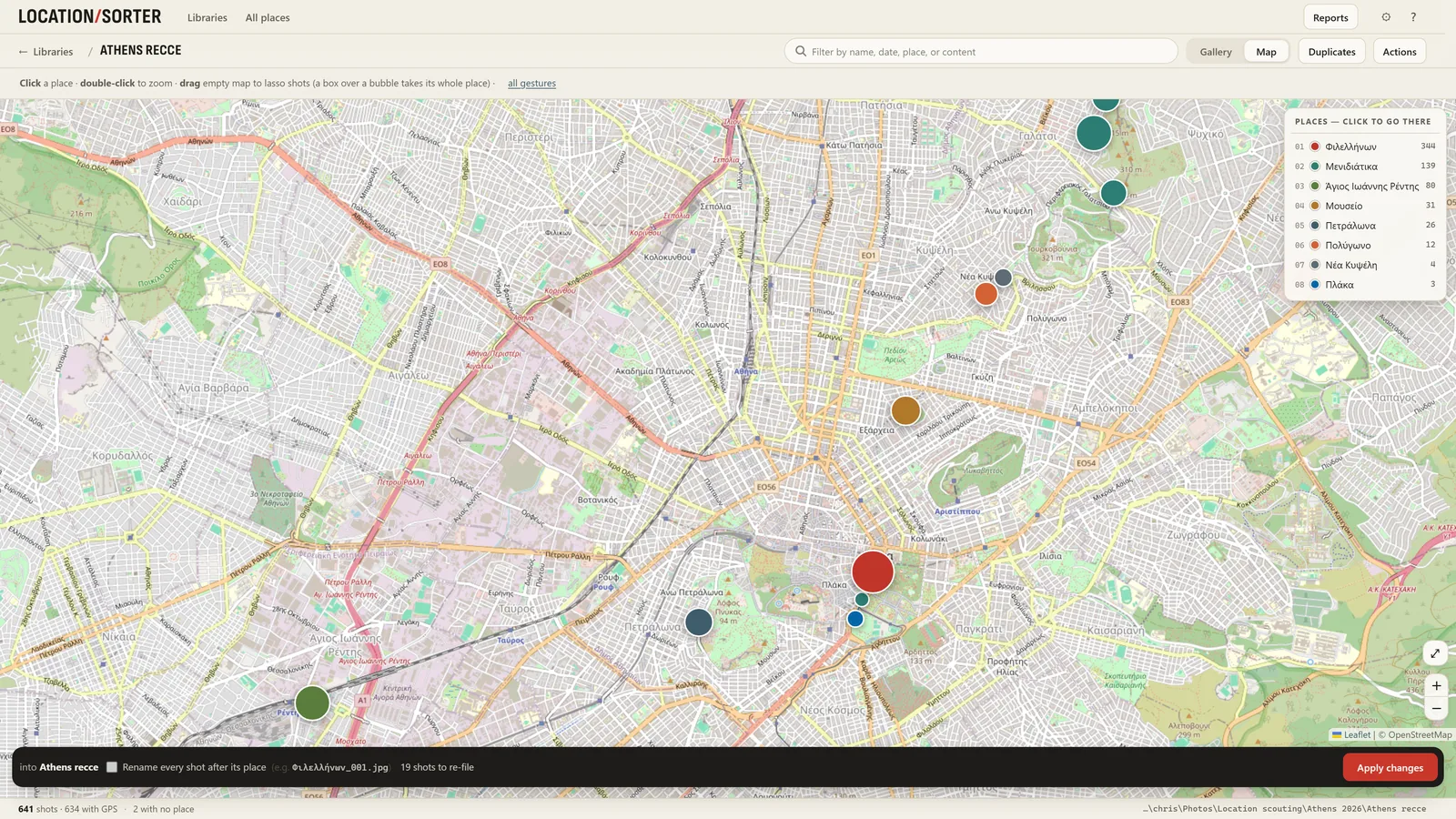
Choose Sort a folder of shots… and pick the folder. Location Sorter reads the GPS in every photo and clip and shows:
- A map with a pin for each place. Shots taken close together form one place, and each place is named from the map: a street, a neighbourhood, a landmark.
- The list of places, each with how many shots it holds, so you can see at a glance where most of the day went.
- Shots without a position, gathered under No place, so you know which ones have none. You can give them a position by hand.
Click a place to see its shots as a strip, and open any shot to see it large. The status line at the bottom says how many shots there are and how many have GPS.
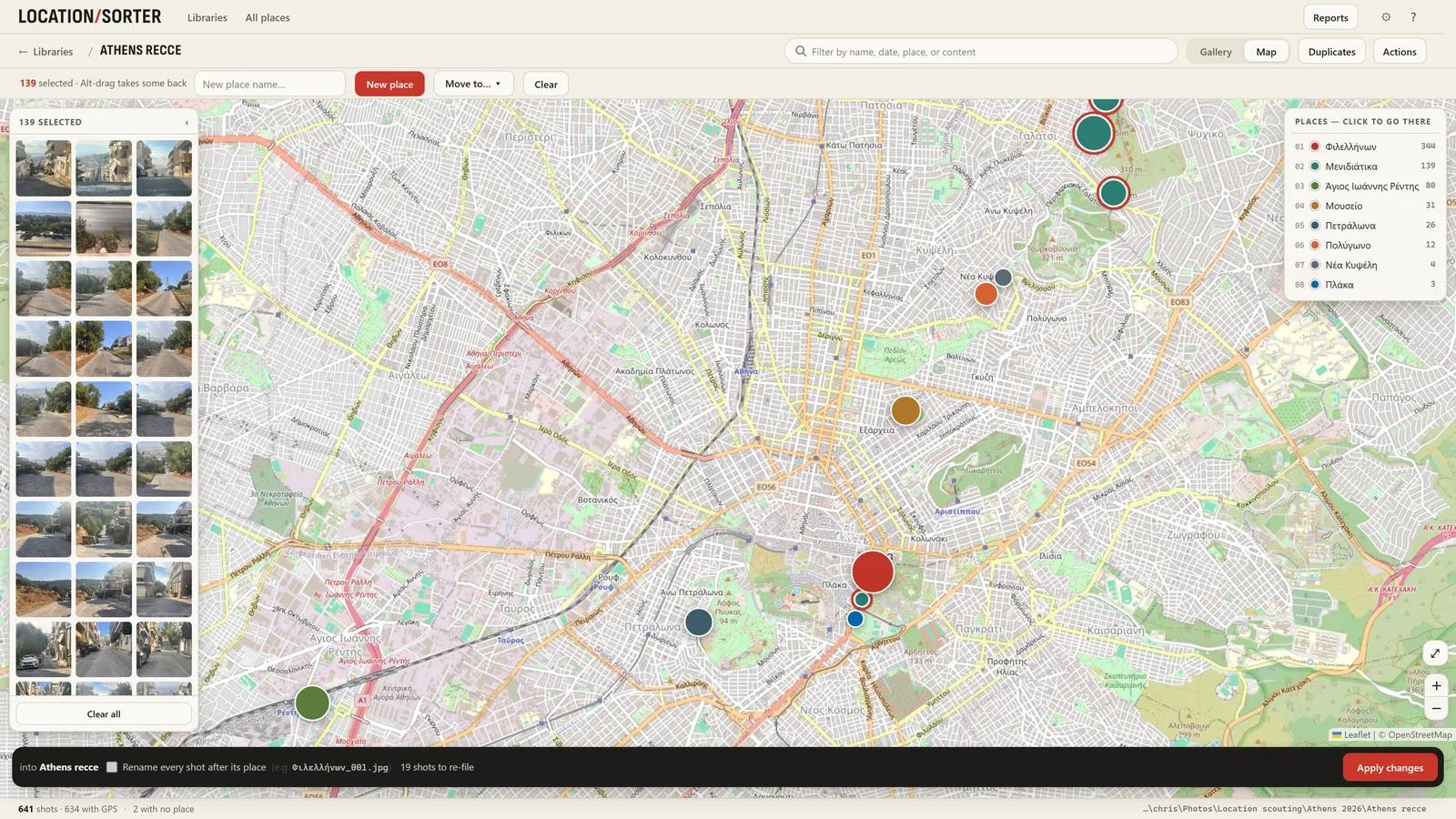
From there you can go a step further and sort the folder into one subfolder per place, which is what the app is named for. Our guide to sorting photos by location on Windows walks through it. Nothing moves until you press Apply, and Put shots back (in Actions) returns every moved shot to where it came from.
Privacy: who else can see where you were
The position travels with the file. Anyone you send the original to can read it the same way you just did. If you'd rather not share where a photo was taken:
- On an iPhone, the share sheet has an Options link at the top where you can turn Location off before sending.
- On Windows, Properties → Details → Remove Properties and Personal Information can make a copy without it.
Location Sorter never sends your photos anywhere. It asks OpenStreetMap for map tiles and for place names, which means sending a place's coordinates, or the name or address of a place you ask it to find. It opens Google Maps only when you open a route there. The privacy policy has the details.
Location Sorter is free to try for 7 days from the Microsoft Store, then €24.99, once.