How to find near-duplicate photos on Windows, without deleting anything
Most of the clutter in a photo folder isn't true duplicates. It's the five frames you took of the same doorway, the burst of a passing tram, the shot you re-took because someone walked through it. They're different files, so a duplicate finder that compares files says they're all unique, and they quietly make the folder five times bigger than it needs to be.
This guide explains the difference between the two kinds of duplicate, what Windows can do about each, and how to set the extras aside without deleting anything.
Exact copies and near-duplicates
Exact copies are the same file twice: a photo imported twice, a folder copied into itself, the same picture from both a phone backup and a cloud sync. The bytes are identical, so they can be found by comparing the files.
Near-duplicates are separate photos of the same thing, taken seconds apart. The pixels differ a little (a slight change of angle, exposure or a person moving), so comparing files finds nothing. They can only be found by comparing what the pictures look like.
What Windows can do
Windows has no duplicate finder, but File Explorer can help you spot near-duplicates by hand:
- Open the folder and choose View → Large icons, so you can see the pictures.
- Sort by Date taken (Sort → More → Date taken if it isn't listed). Re-takes were taken seconds apart, so they end up side by side.
- Look along each run, keep the best frame and move the rest into a folder called
extras.
It works for a small folder. For a few hundred photos it's slow, and it's easy to miss runs that are split up by another shot taken in between.
The quicker way: Location Sorter's Duplicates
Location Sorter has a Duplicates panel that does the comparison for you, by what the pictures look like.
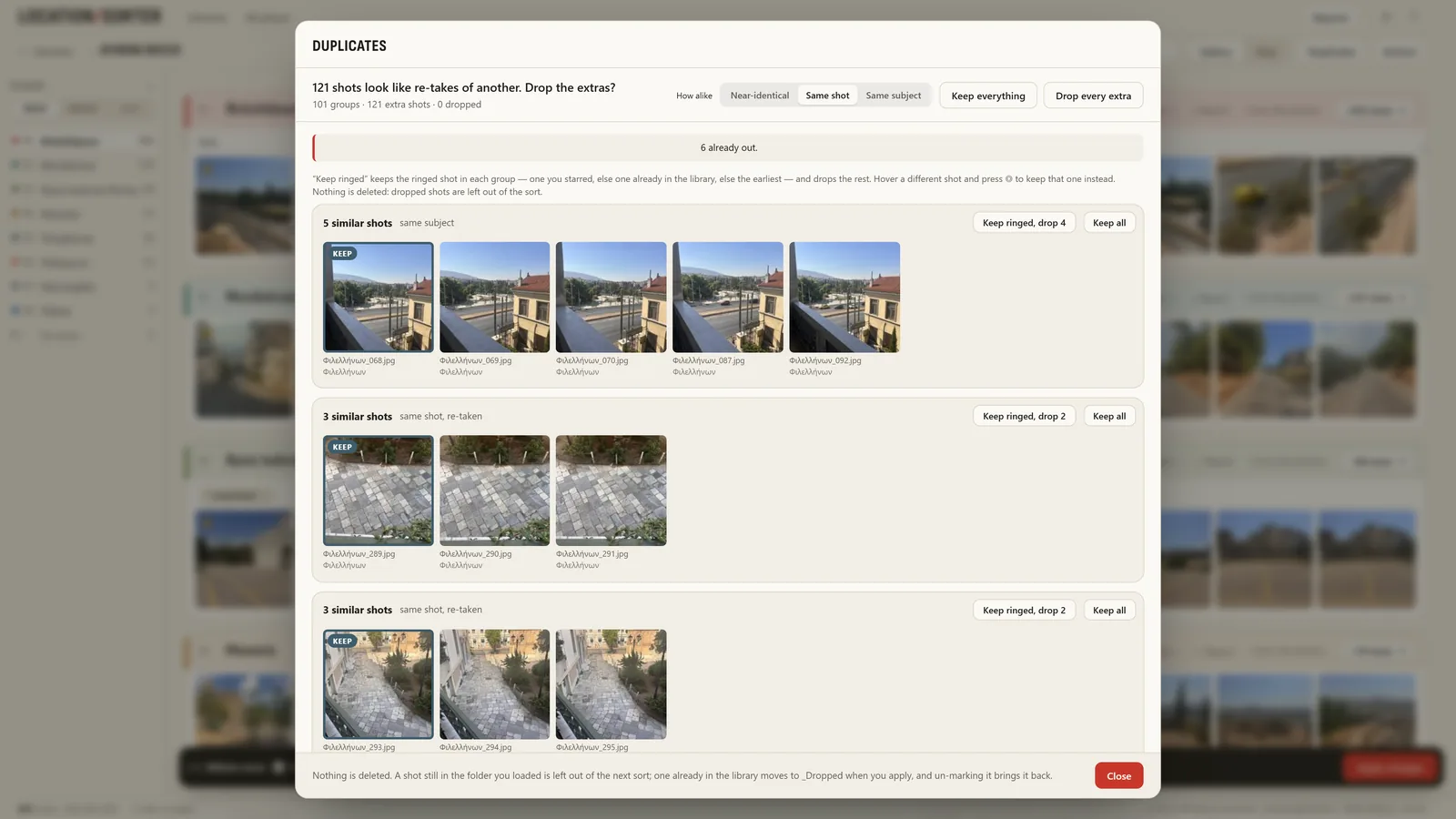
- Open the folder with Sort a folder of shots….
- Open Duplicates. It finds the runs of near-identical shots and asks the question outright: "127 shots look like re-takes of another. Drop the extras?"
- In each run, one shot is marked keep and the rest drop. Change which one is kept with a click.
- Use the how alike control to decide what counts as a duplicate, from near-identical frames only to anything of the same subject.
Nothing is deleted. A dropped shot that's still in the folder you loaded is simply left out of the sort. One that's already in a sorted library moves to a hidden _Dropped folder when you apply, and un-marking it brings it back. When you're sure, you can delete the dropped shots yourself, or keep them as a backup.
Why not just delete them?
Sometimes the "duplicate" is the one you'll want: the frame where the light was a little better, or the one without the van. Setting extras aside rather than deleting them keeps the folder tidy without forcing a decision you might regret. It's also why Location Sorter never deletes your files, whatever you do in it.
While you're at it
Duplicates is one part of a bigger job: getting a folder of shots into order. The same app groups the shots by where they were taken and files them into one folder per place. See how to sort photos by location on Windows.
Location Sorter runs on your PC, with no account and no upload. It's free to try for 7 days from the Microsoft Store, then €24.99, once.