How to organise holiday photos by place
Two weeks away, two phones, a thousand photos and a few dozen video clips. Sorted by date they're a long scroll; sorted by place they're a story: the harbour, the old town, the beach you went back to three times, the village on the drive home. This guide shows how to get from one to the other on a Windows PC.
1. Gather everything in one folder
Copy the trip's photos and videos from every phone into a single folder on your PC. A cable, OneDrive, iCloud for Windows or Google Drive all keep the GPS position in each file. Photos that arrived through a messaging app usually don't have it any more, so get the originals from whoever took them.
Mixing phones is fine: what matters is where each photo was taken, not whose phone took it.
2. Let the places find themselves
Open Location Sorter and choose Sort a folder of shots…. It reads the position in every photo and clip and groups the ones taken close together into places, named from the map.
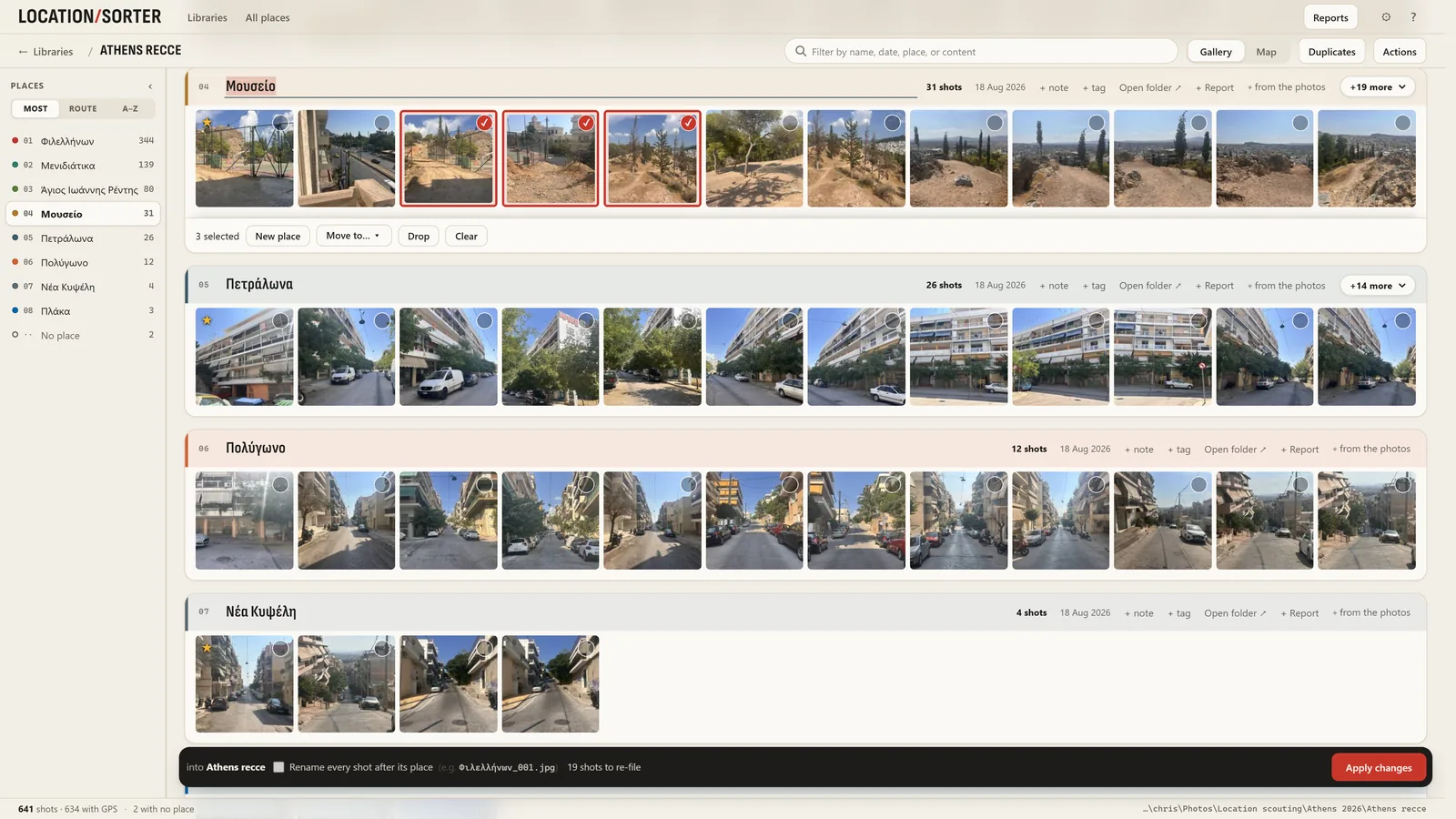
You'll see each place as a strip of its photos and as a pin on the map. A trip usually comes back as a handful of places per day.
3. Make the places yours
The map's name is a starting point. Rename places to how you remember them: "Villa", "The good taverna", "Beach (day 3)". Those names become the folder names. If two pins are really the same spot, drag the photos of one into the other; if the hotel pool ended up with the hotel restaurant, split it off with New place….
4. Thin out the bursts
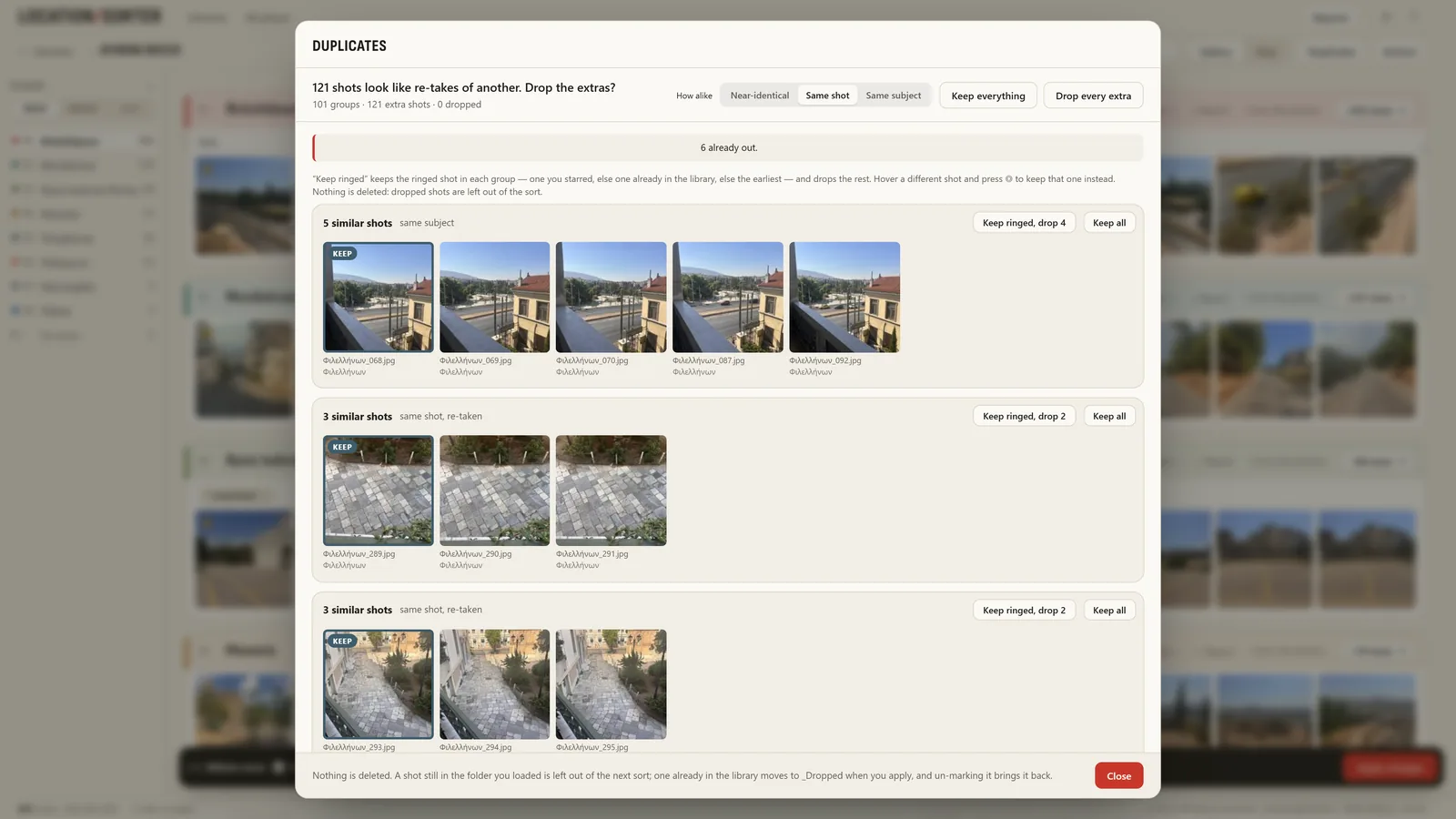
Holidays are where the near-duplicates pile up: twelve frames of the same sunset, a burst of a jumping child. Duplicates finds them and offers to keep the best of each run. The rest are left out of the sort, not deleted, so nothing is lost.
5. File it
Press Apply and each place becomes a folder inside the trip's folder. Changed your mind? Put shots back (in Actions) returns every moved photo to where it was.
The trip stays on the Libraries screen. Next year, the All places map shows every place from every trip you've sorted, on one map.
A few tips
- Star the keepers. Starred photos lead their place, which makes choosing the ones to print or share much quicker.
- Photos without a position (screenshots, a camera without GPS) wait under No place. Give them a position by hand, or leave them there.
- Sort straight from your cloud folder if that's where the photos live: Location Sorter works on OneDrive, Dropbox, Google Drive and iCloud folders on your PC.
Location Sorter runs on your PC, with no account and no upload. It's free to try for 7 days from the Microsoft Store, then €24.99, once.